FujiKit

For iPhone · iPad · Mac

Your Fujifilm recipes, on and off the camera.

FujiKit reads the seven custom slots on your Fujifilm camera, keeps every film simulation recipe in one library, and syncs them back over a USB cable. You get your favourite looks on the camera in seconds - no menu diving, no typos.

Download on the App StoreDownload on the Mac App Store

Free. No subscription, no in-app purchases, no ads.

Requires iOS 26, iPadOS 26 or macOS 26 or later. Slot sync tested on the X-T5 and X100VI.

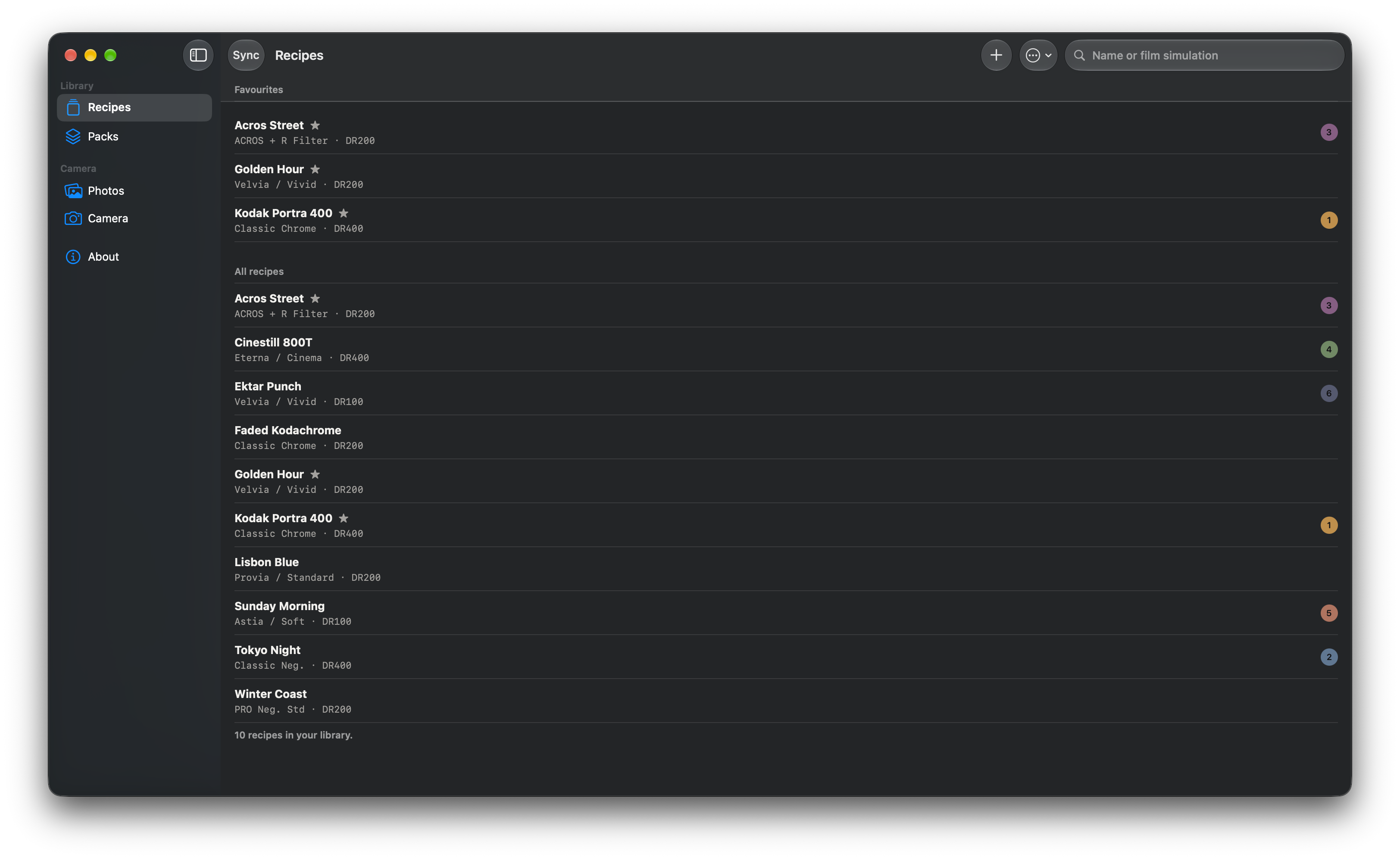
Mac · Library with sidebar and a recipe open
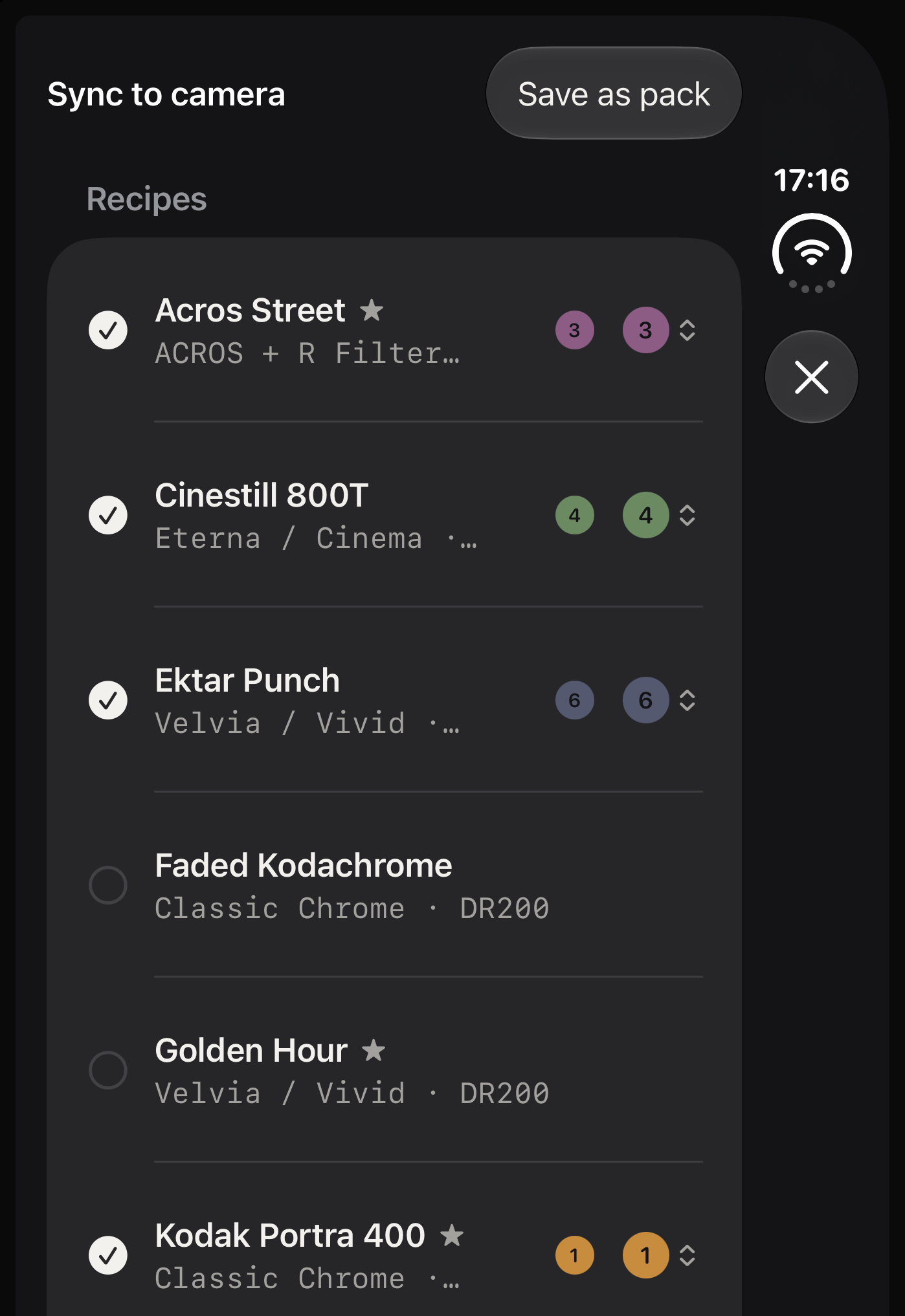
iPhone Duo · Sync to camera
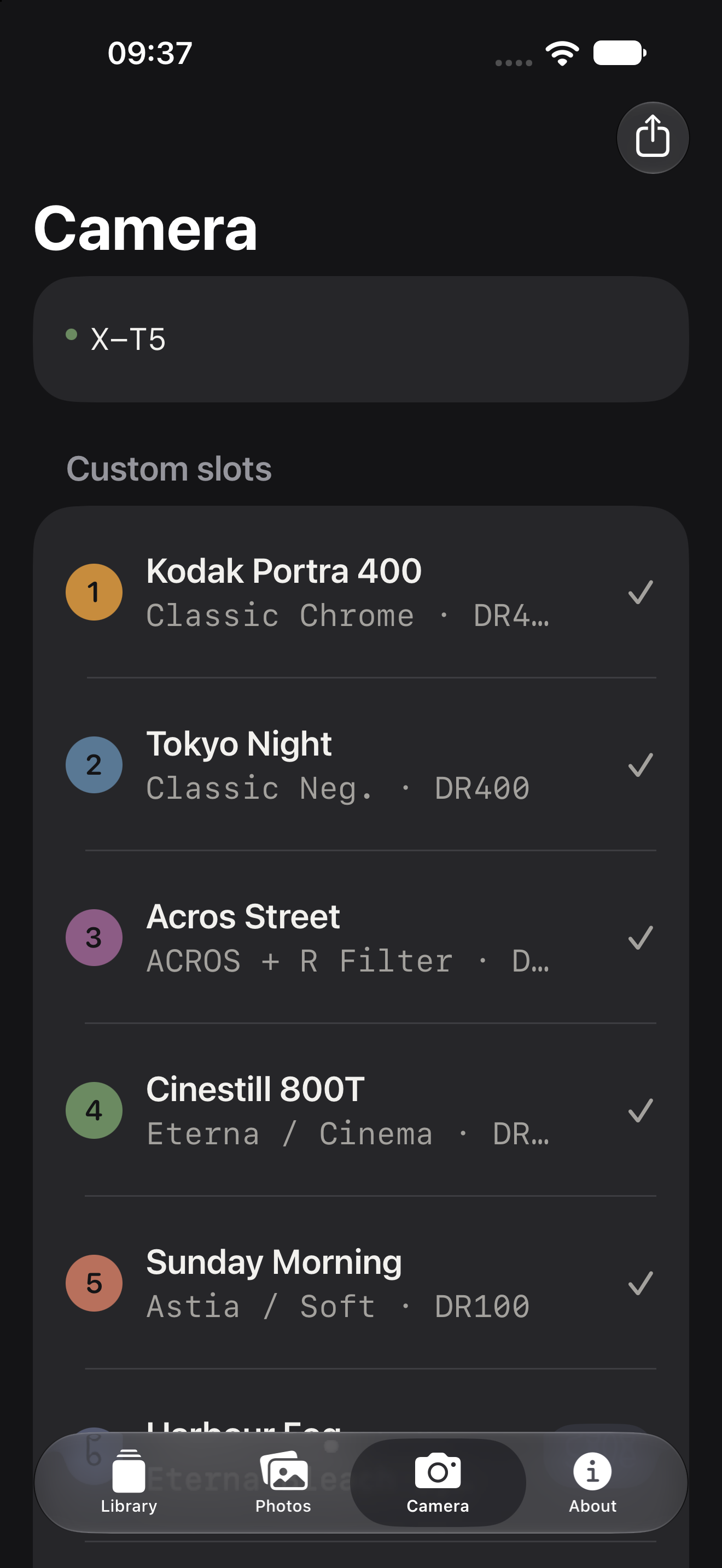
iPhone · Camera tab with seven slots read
  1. C1
  2. C2
  3. C3
  4. C4
  5. C5
  6. C6
  7. C7
Seconds, not menus

Read or write all seven slots in one action.

Never lose a recipe

Back up what is on your camera before you change it.

Recipes from photos

Recover the settings of any Fujifilm JPEG.

One library, three devices

iPhone, iPad and Mac, synced through your iCloud.

Features

Everything your recipes need, in one place.

What FujiKit does - and what you get from each part.

C1

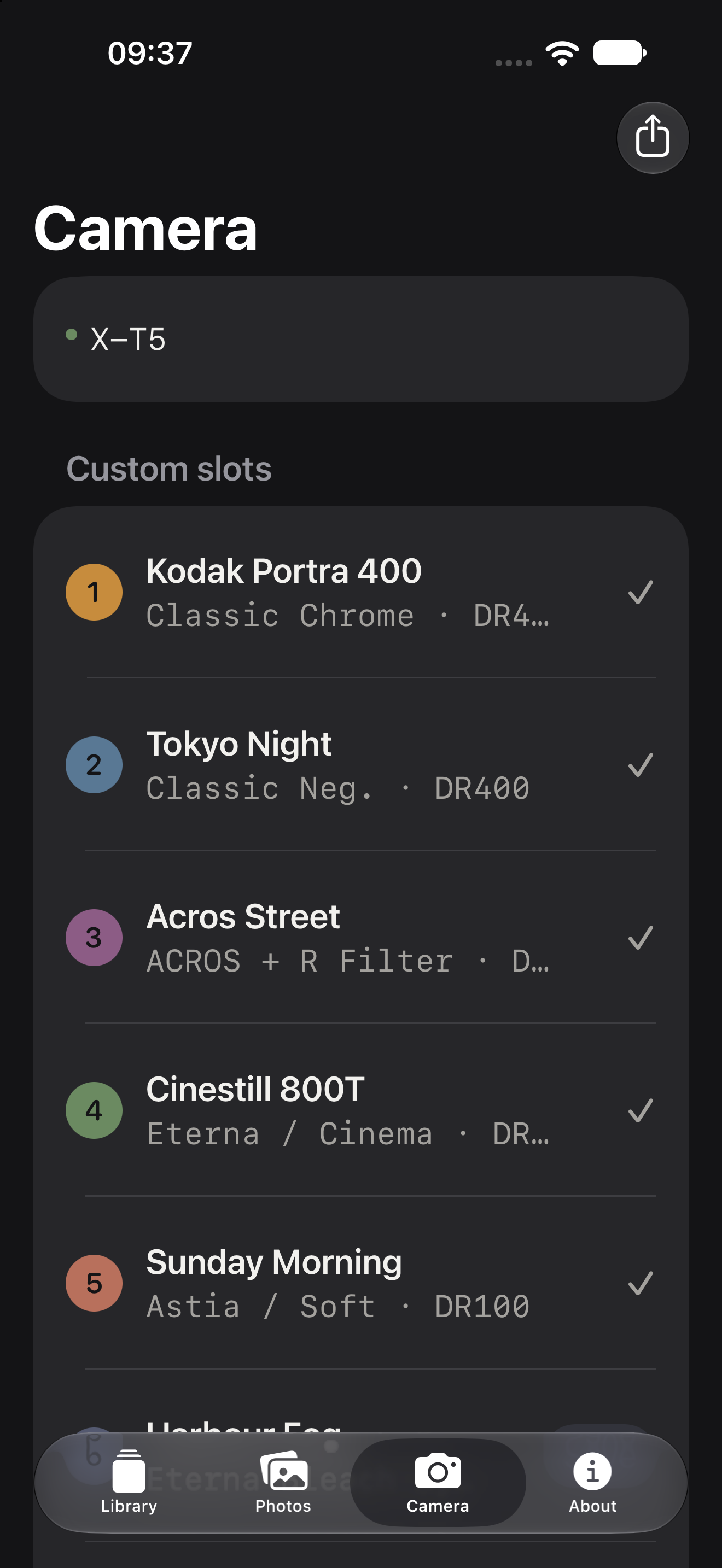
Read all seven custom slots

Connect your camera and FujiKit reads C1 to C7 - film simulation, white balance and shift, dynamic range, grain, colour chrome, highlight and shadow tone, colour, sharpness, clarity and noise reduction - in one go.

You getA complete backup of every recipe on your camera in seconds, instead of copying settings off the Q menu by hand.

iPhone · Camera tab after reading C1–C7
C2

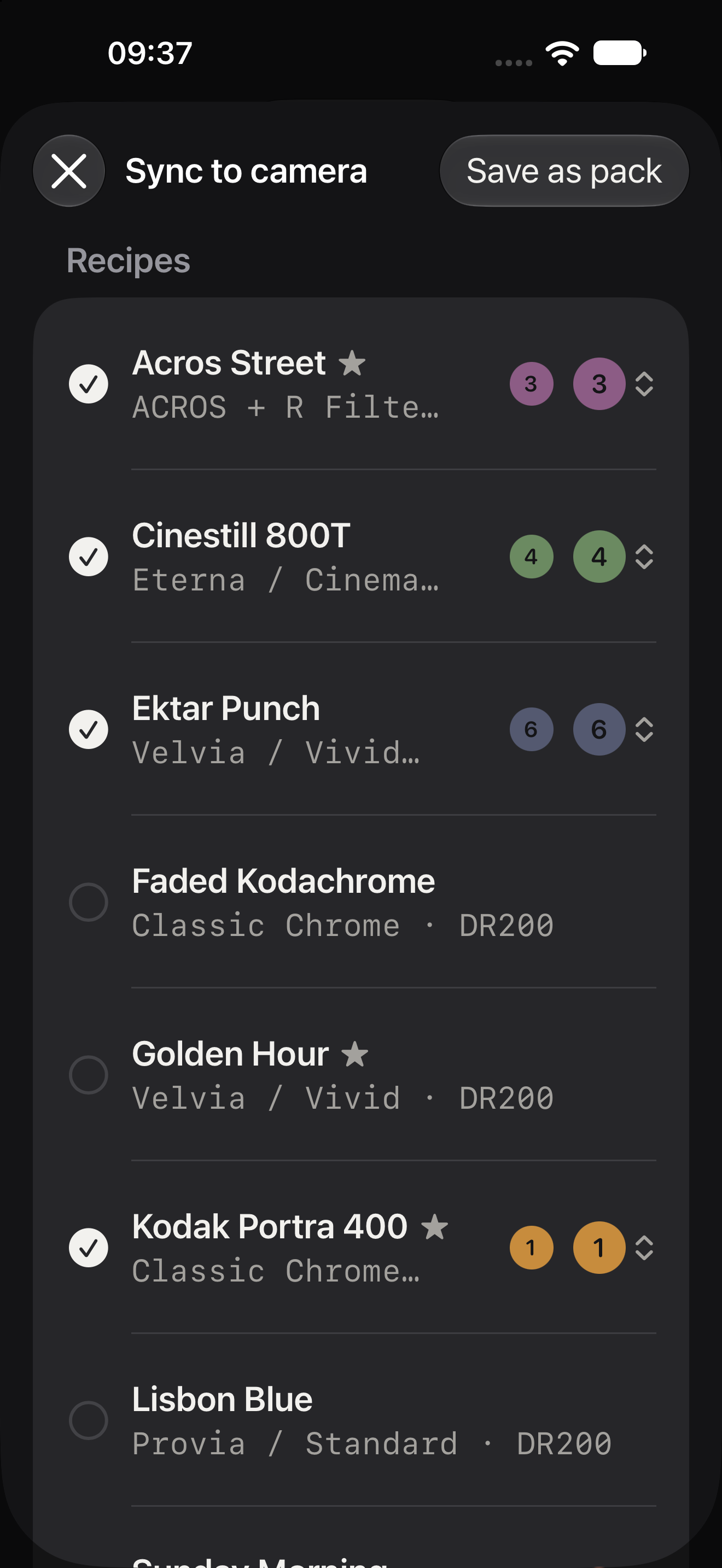
Sync recipes back to the camera

Pick the recipes you want and the order they go in. The first takes C1, the next C2, and FujiKit shows the progress of every recipe separately, so you know exactly which slot was written.

You getNew looks on your camera without dialling in dozens of values through the menus - and without a typo in one of them.

iPhone · Sync sheet with per-recipe progress
C3

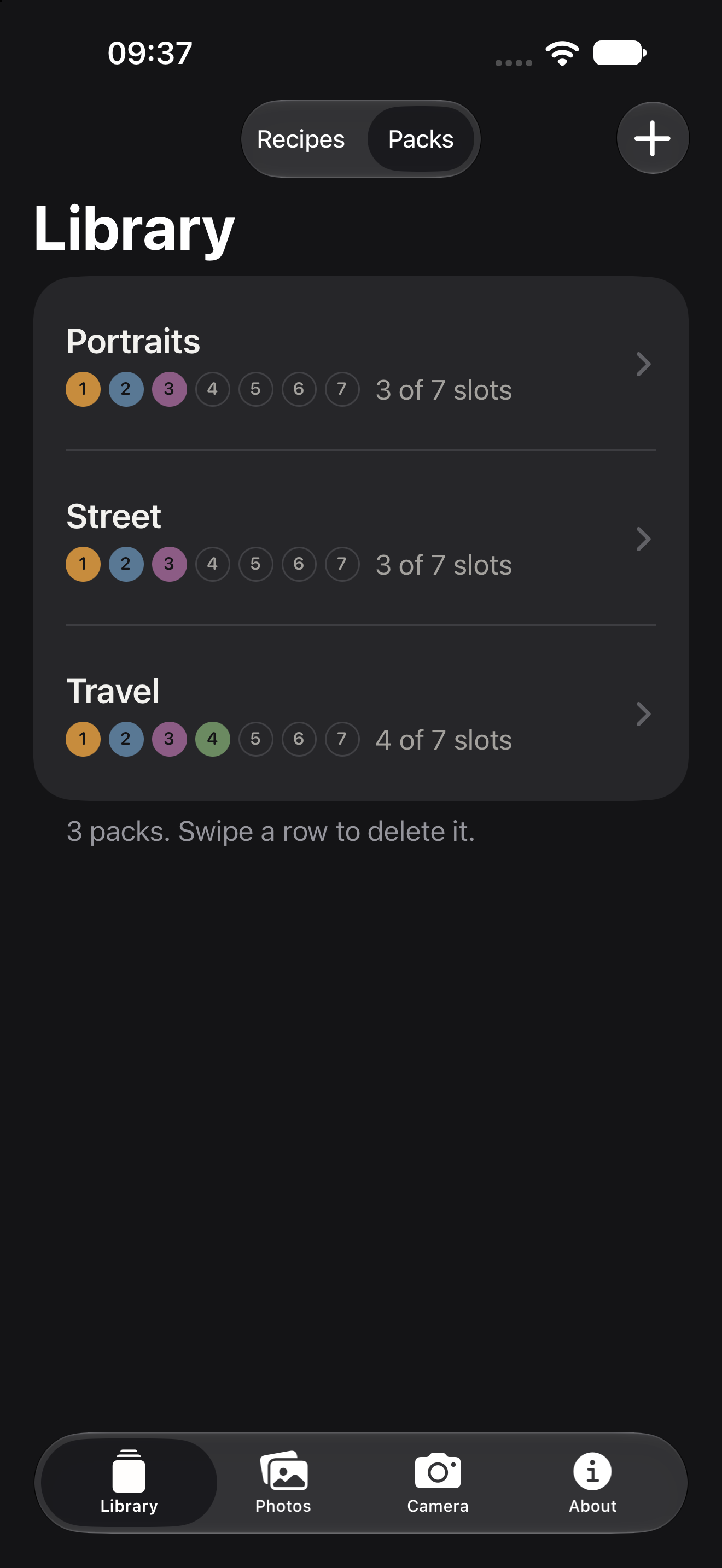
Packs: swap a whole set at once

Group recipes into packs - travel, street, portraits, black and white - and put an entire pack on the camera in one action.

You getSeven slots set up for the day ahead in one tap instead of seven separate syncs.

iPhone · Pack detail with seven recipes
C4

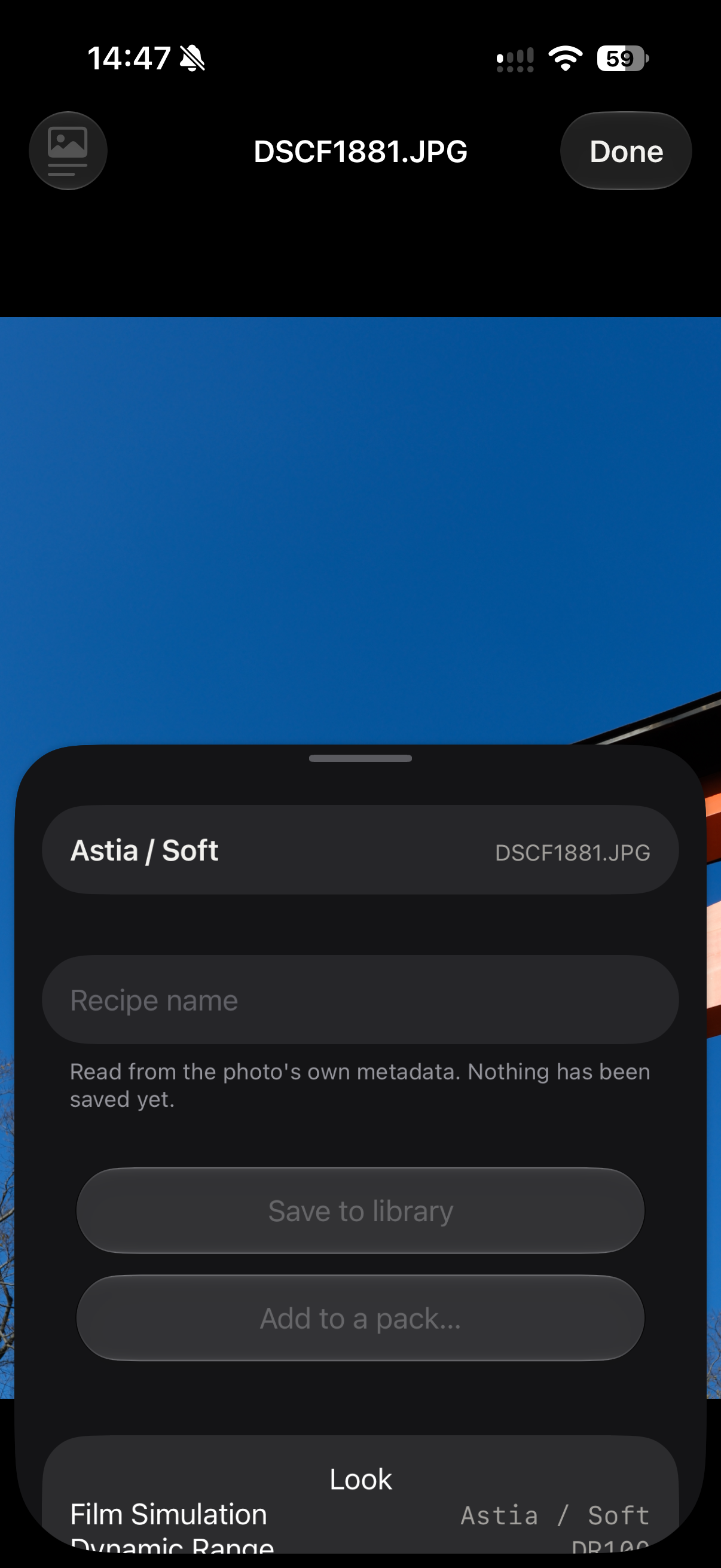
Every photo carries its recipe

Fujifilm cameras record the settings of every shot inside the JPEG. Add a photo from your library, Files, or by drag and drop on Mac, and FujiKit shows the recipe it was shot with.

You getFound a frame you love from last summer? Get its exact recipe back, save it, and put it on the camera. No cable needed for this part.

iPhone · Photo with its recipe sheet open
C5

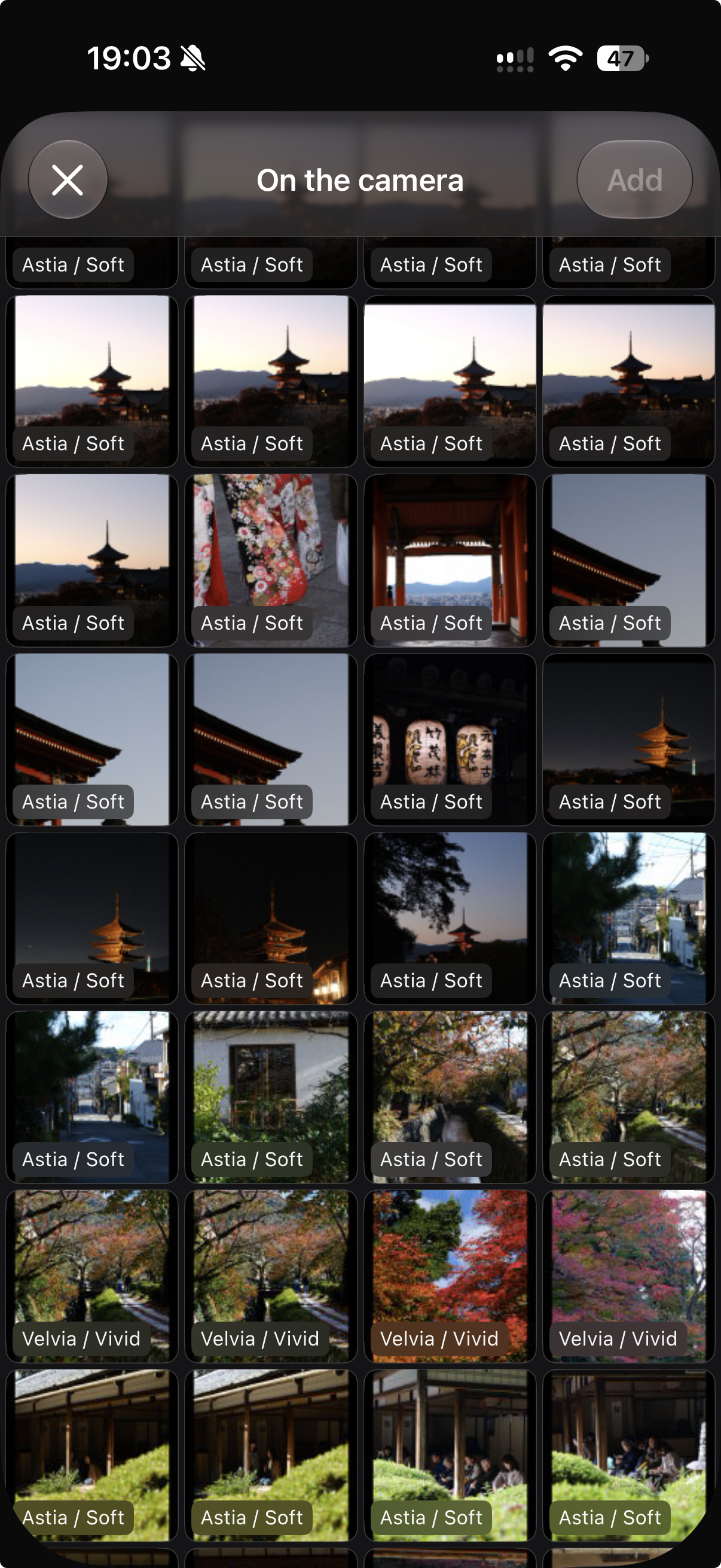
Browse the memory card

Set the camera to USB CARD READER, connect it, and see the photos on the card with each recipe already read - before anything is copied.

You getPick the shots with the look you want at a glance, and pull just those onto your device.

iPhone · On the camera: card browser
C6

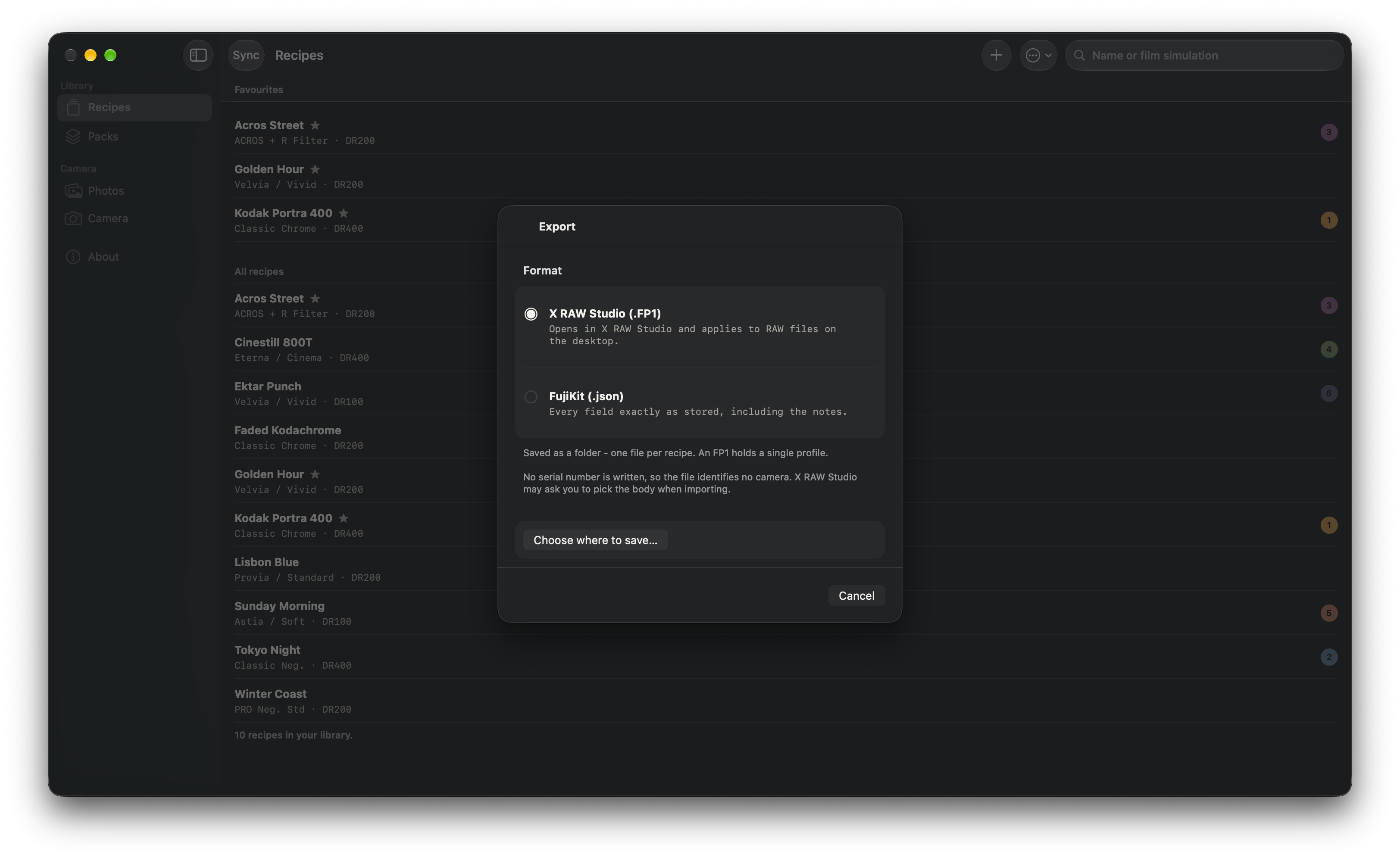
X RAW STUDIO .FP1 import and export

Open .FP1 profiles made in FUJIFILM X RAW STUDIO, or export any recipe as .FP1 to apply to your RAW files on the desktop. A FujiKit .json export keeps every field, including your notes.

You getThe same recipe in camera and in your RAW workflow, and a portable backup you can share with another FujiKit user.

Mac · Export sheet with .FP1 and .json
C7

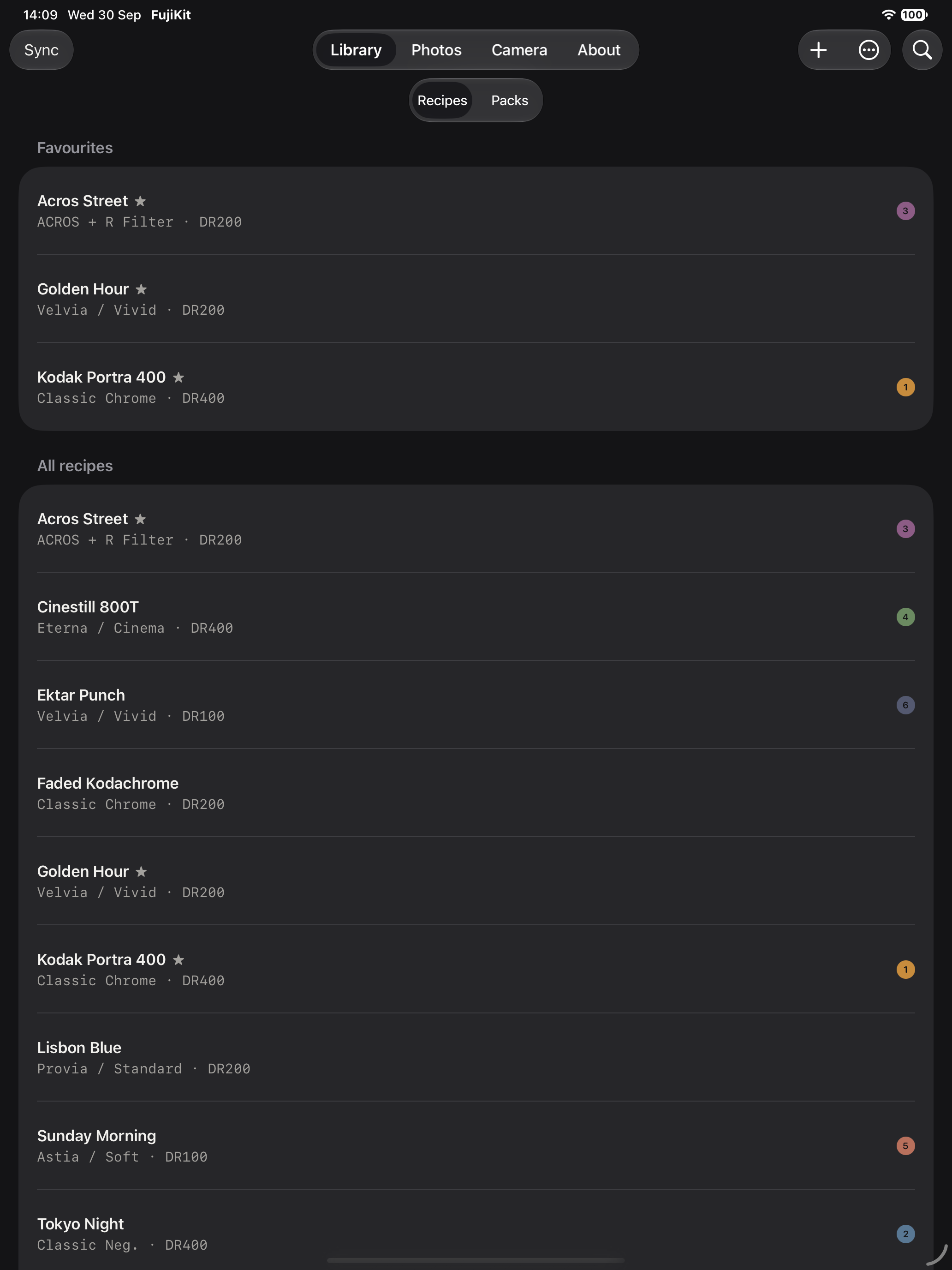
Your library on iPhone, iPad and Mac

Recipes and packs sync through your own private iCloud account. Read the camera on your Mac, tweak a recipe on your iPad, and sync it from your iPhone in the field.

You getOne library everywhere, with no account to create and nothing stored on anyone else’s server.

iPad · Library and recipe editor side by side

A recipe editor with a built-in guide

Every setting is explained in the camera’s own terms, with the ranges the camera accepts - including the non-obvious parts, like DR200 and DR400 needing a minimum ISO or the camera silently stays at DR100.

Built for each device

A native sidebar on Mac, a full-width layout on iPad and a one-handed layout on iPhone. Light and dark appearance, Dynamic Type and VoiceOver throughout.

Private by design

No account, no ads, no analytics and no tracking. Your camera talks to your device over a cable, and your library lives in your iCloud.

How it works

Three steps. One cable.

  1. 1

    Set the camera

    In NETWORK/USB SETTING → CONNECTION MODE, choose USB RAW CONV./BACKUP RESTORE.

  2. 2

    Plug it in

    Connect the camera to your iPhone, iPad or Mac with a USB cable and switch it on.

  3. 3

    Read, edit, sync

    Read C1–C7 into your library, change what you like, then send recipes or a whole pack back to the camera.

Cameras

Tested, not guessed.

Slot reading and syncing were measured property by property on real cameras. FujiKit checks the camera before it writes anything, and refuses if it is not one it knows.

Read & sync slots

FUJIFILM X-T5

Minimum firmware
4.00
Tested on
4.31

Read & sync slots

FUJIFILM X100VI

Minimum firmware
1.32
Tested on
1.32

Any Fujifilm camera

Everything else

Recipes from photos, browsing the card, the library and editor, packs, and .FP1 / .json import and export.

Questions

Good to know.

How much does FujiKit cost?

Nothing. FujiKit is free - no subscription, no in-app purchases, no ads and no account. One download works on iPhone, iPad and Mac.

Which cameras are supported?

Reading and writing the seven custom slots is tested on the FUJIFILM X-T5 (firmware 4.00 or later) and X100VI (firmware 1.32 or later). Everything else - reading the recipe from any Fujifilm photo, browsing the card, the library, packs, and .FP1 import and export - works with any Fujifilm body.

Why only those cameras for syncing?

Fujifilm’s recipe settings are stored under numeric codes that are not portable between bodies: the same number can mean a different setting on a different camera. FujiKit checks the profile schema your camera reports before it writes anything, and refuses if it does not recognise it. It never guesses with your camera.

How does FujiKit connect to the camera?

Over a USB cable. On the camera, set CONNECTION MODE to USB RAW CONV./BACKUP RESTORE, then plug it into your iPhone, iPad or Mac. That’s it - no other app needed.

Which connection mode do I need for photos from the camera?

USB CARD READER. To browse the photos on the memory card and read the recipe from each JPEG, set NETWORK/USB SETTING → CONNECTION MODE to USB CARD READER. Reading and syncing the seven custom slots needs USB RAW CONV./BACKUP RESTORE instead, which does not give access to the card - so switch the mode on the camera when you move between the two. Photos already on your iPhone, iPad or Mac need no camera at all.

Will syncing overwrite what is on my camera?

Yes: syncing a recipe replaces whatever is in that slot. Read your camera into FujiKit first - it takes a few seconds - and your current slots are safely in your library.

Do my photos get uploaded anywhere?

No. Photos you add stay on that device, in the app’s own storage, and are never synced or uploaded. Only recipes and packs sync, and only through your own iCloud account.

Is this an official Fujifilm app?

No. FujiKit is an independent app made by a photographer. It is not made by, endorsed by, or affiliated with FUJIFILM Corporation.


More answers and troubleshooting on the support page.

Put your favourite looks on your camera.

Free for iPhone, iPad and Mac. No subscription, no in-app purchases.

Download on the App StoreDownload on the Mac App Store